Editing Punches

Editing  Punches
The View History feature will enable employees to edit punches. This feature may also be turned off by Administration. Select the #4 "View History".
Once you select it, you will be able to see the history and an Edit button next to the entries that can be edited.
Tap on the punch that you need to correct and select whether you need to change the start or end times.

Make sure the times are consistent, since the system won't allow times to overlap or any edits that will affect data integrity.
 Next type the reason for the change and tap "Save". Once done, the app will update the time in the “View History” screen.
 If your company uses team clock-in, Team leaders can open the Menu on the top right select any of his/her team members. This will enable them to view that person's history and edit punches using the same process explained on this post.
One more feature for Administrators, to keep track of all the changes, who made them, original and corrected times, go to reports and pull "TimeCard Audit Report This report lists all changes


Photo Clock-In

Photo Clock-In
Be sure your employees are clocking themselves in with Pacific Timecards "Photo Clock-in". (also Available clocking out, breaks and events) Administrator will enable this feature from the web portal.

Go to the "Administration" tab and select "Preferences". Look for the following option and make sure to click the checkbox. Click SAVE


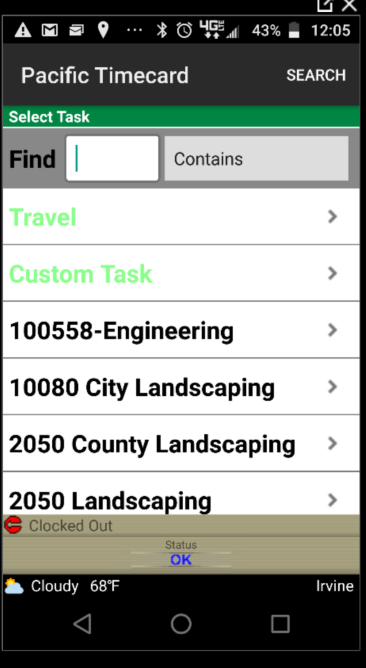
App is now ready, the next time the employees attempt to clock in, the Camera will be launched prompting them to take a picture before task is selected. If you are happy with the picture, tap on OK.


Then, tap on Submit to continue. After this you will see the list of tasks.


Select the one that applies, also the sub-task if available, and you will be successfully clocked in!

Shared Device Multi-User Clock-in

Shared Device Multi-User Clock-in
This feature is especially useful for companies that have devices that need to stay in one place or are shared from employee to employee. The whole setup is done through the application. You must be clocked into the device.

Open Menu and select Settings. On the next screen, open the Menu once again and tap on "Force Logon".

By default, this option will be disabled, click the drop down menu and select Multi user.
When you go back, you will notice that the settings icons #1 (Device ID) and #2 (Password) are no longer shown.
The application will now ask for that information the next time you clock in. On this example we have clocked out and then clocked back in, just as if an employee was passing the tablet to the next guy on the shift.
 When you tap on clock in, you will see a prompt asking you to enter your Device ID and Password, so go ahead and enter it and tap "Login" when you are ready:
The app will attempt to authenticate with the server and once it connects, you will get the disclaimer, just like when setting up the app with the standard method through the settings screen.
Any data that corresponds to your profile will be loaded (tasks, subtasks, GPS rules, custom fields, etc.) and then you will be ready to clock-in.

Make sure to contact us if you need any assistance or have interest in learning more about this and many more new features!

Welcome to Pacific Timecard

Welcome to Pacific TimeCard's How To's and What's New


New Enhancement: Bi-weekly Timesheet Signoff

We have a quick announcement to make on this post, we have just implemented a new much requested frequency for the  timesheet signoff :  B...