Clock-In Lock
"Clock-in Lock" restricts the location where the employees can clock in. IF the employee is outside the expected job area, the job will not allow the employee to clock-in.
The task (job) must have an address or coordinates attached for this to work. Next, click on "Create Customer SmartFence." (A default fence can also be created and applied for multiple jobs. If you go this way, make sure to follow the next steps when setting up the Default fence first, then you can select Default on the SmartFence option within the task and click on Save to complete it.)
Name the rule as you see fit. Use the Search option to find the address and set the radius to the desired size. Next, click on "Create New" in the RULES section.
Next, setup the Clock in "Lock rule and parameters". Open the Trigger drop-down menu and select the option "Clock In Lock Within Area":
Next, click on "Lock Phone" if you want employees not to be able to punch in to the job unless they are inside the specified area. Leave this option disabled will allow them to select the task, but you can always create an alert to be notified whenever this happens. When this is ready, click on SAVE to go back.
You will notice that the "Rules" section will be populated with the rule you created in the previous step. Click on "Add Existing" to apply the rule.
When the rule is successfully applied, you will see it listed below under ID and Name
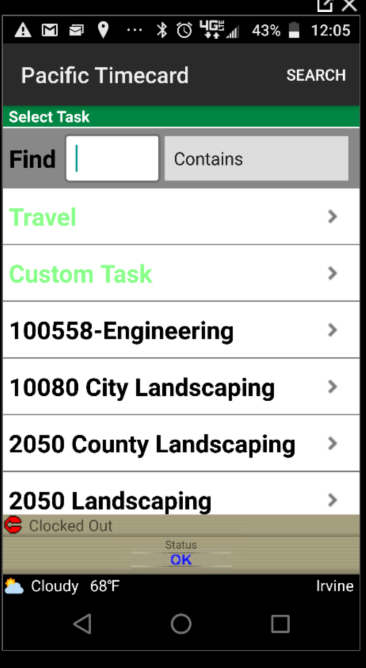
Next, we will cover how the "Clock-in Lock" feature works on the mobile device. At the beginning of the day, you will be clocking in as normal, by seleting as task from the "Tasks List"
This time, these tasks will have the address and clock-in lock rules attached to them. The device will use the current location and compare it to the expected location. If outside the correct area, the clock in will not be accepted, if inside the clock in will be successful.
The device could take a little time to get the location, so a message could be sent with suggestions as to what to do to improve the GPS signal. On the other hand, if you are outside of the expected area, you will get a message telling you that you are at the wrong location for the selected task, and the clock in or change task action will be unsuccessful.
If you have any questions please contact us.